
How to block a website on Chrome, free and with no account
To block a website on Chrome, add Escape for Chrome, click its icon in the toolbar, paste the site's address and click Block. That site stops loading in Chrome straight away. It is free, with no account, and you can block up to 200 sites of your own. Adult sites are already taken care of: 40,000+ of them are blocked the moment you install it.
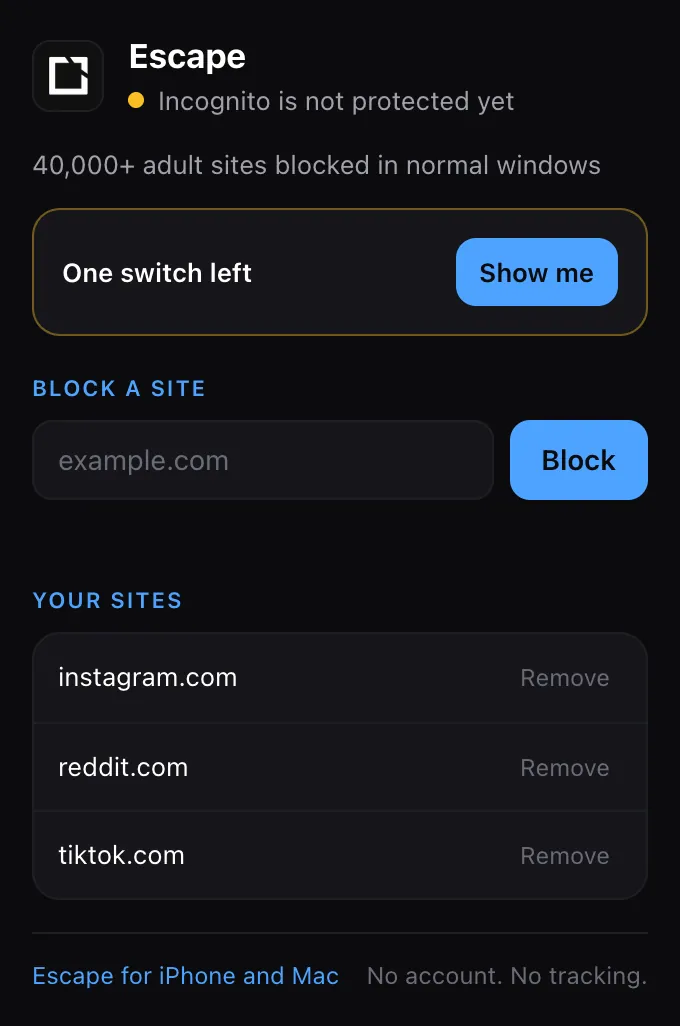
How to block a website on Chrome, step by step
1. Add Escape for Chrome
Open Escape for Chrome in the Chrome Web Store, where it is listed as Escape - Adult Content Blocker. Click Add to Chrome, then Add extension. It works in Chrome on Windows, Mac and Chromebook.
2. Pin the Escape icon
Click the puzzle piece icon in Chrome's toolbar, then the pin next to Escape. The Escape icon now sits next to the address bar, one click away.
3. Type or paste the address
Click the Escape icon. In the Block a site box, type the site's address, like example.com. Or copy a link straight from the address bar and paste it in. Escape keeps just the site part, so a long link with extra bits on the end works fine.
4. Click Block
The menu says Blocked, and the site appears under Your sites. From now on, when you open that site, Chrome shows its own plain page saying it is blocked.
5. Cover Incognito too
Chrome keeps every extension out of Incognito windows until you allow it. When you install Escape, a short setup page walks you to the switch. Turn on Allow in Incognito, and every site on your list is blocked in Incognito as well. More on Incognito.
6. Test it
Open a new tab and try the site you added. Then open an Incognito window with Ctrl+Shift+N on Windows, or Cmd+Shift+N on a Mac, and try again. If it is blocked in both, you are done.
What gets blocked when you add a site
- The whole site. Every page on it, not just the one you pasted.
- Its other addresses. The www. and m. versions, and other addresses that end in the same site name.
- In every window. Normal windows straight away, and Incognito once the switch is on.
If you try to add a site Escape already blocks, the menu says so: Escape already blocks that one. So you never need to hunt down adult sites one by one. They are covered from the first minute.
What people block
Not every site that pulls you in is a porn site. Some people use the Block a site box for:
- A social feed they open on autopilot and scroll for hours.
- A forum or video site that tends to lead somewhere they do not want to go.
- A site they visit when they are bored, tired or up too late.
Think about the last few times you lost an evening. The sites you were on are a good place to start. For feeds where adult content turns up, see how to stop seeing porn on X, Reddit and Instagram.
Tips for a list that works
- Block it the moment you notice it. When a site pulls you in, add it while you still feel clear about it. It takes five seconds.
- Add both addresses for sites with two names. Some sites have an old name and a new one. Add both.
- Make the list yours. It is your list. Add what pulls you in, not what someone else thinks should be on it.
It works in Edge and Brave too
Escape for Chrome can be added to Microsoft Edge and Brave from the Chrome Web Store. The Block a site box works the same way in each. The Edge guide and the Brave guide have the setup for each.
Your list stays private
The sites you add are kept by your browser, not by us. If Chrome sync is on, your browser carries your list to your other computers under your own Chrome account. Escape has no account, collects nothing and never sees your list or the pages you visit. What its two permissions mean.
On your phone
On iPhone, the free Escape app blocks the same 40,000+ adult sites and lets you add your own too. How to block a specific website on iPhone.
Common questions
How do I block a website on Chrome for free?
Add Escape for Chrome from the Chrome Web Store. Click the Escape icon in the toolbar, type or paste the site's address in the Block a site box, and click Block. The site stops loading in Chrome straight away. It is free, with no account.
How many websites can I block in Chrome?
Up to 200 sites of your own. That is on top of the 40,000+ adult sites Escape already blocks the moment it is installed.
Does blocking a site also block its other addresses?
Yes. When you add a site, Escape blocks the whole site, every page on it and its other addresses, such as the www. and m. versions. You can paste a full link and Escape keeps just the site part.
Will the site be blocked in Incognito too?
Yes, once you turn on Allow in Incognito for Escape. Chrome keeps every extension out of Incognito until you allow it, and Escape's setup page walks you to the switch.
How do I take a site off my list?
Click the Escape icon, find the site under Your sites, click Remove, then confirm. It loads again straight away.
Can I block websites in Edge and Brave the same way?
Yes. Escape for Chrome can be added to Microsoft Edge and Brave from the Chrome Web Store, and the Block a site box works the same way in each.
Escape - Adult Content Blocker
Block any site in Chrome in seconds, plus 40,000+ adult sites. Free, with no account.
Free extension forChromeMore on this topic in Chrome and computer guides, or go deeper with the Your phone is the dealer course.