
How to block porn on all your computers at once
To block porn on all your computers, add Escape for Chrome to Chrome on one of them and make sure Chrome sync is on. With sync on, Chrome can add Escape to your other computers signed in to the same Chrome account, and the sites you block yourself follow you too. Then turn on Allow in Incognito on each computer. It is free, and there is no account to make with us.
How it works, in plain words
Chrome sync is Chrome's own way of carrying your bookmarks, settings and extensions between the computers you use. Escape rides along with it.
- The 40,000+ adult sites come built into Escape, so every computer has the full list from the first minute.
- The sites you add are kept by your browser. With sync on, your browser carries them to your other computers under your own account.
- Nothing goes through us. Escape has no account and never sees your list.
How to block porn on every computer, step by step
1. Add Escape on your main computer
Open Escape for Chrome in the Chrome Web Store, where it is listed as Escape - Adult Content Blocker. Click Add to Chrome, then Add extension. Blocking starts straight away.
2. Check that Chrome sync is on
Open Chrome's settings and look under You and Google. If you are signed in with sync on, you are set. If you chose what to sync by hand, make sure Extensions is turned on in that list.
3. Open Chrome on your other computers
On each other computer, sign in to Chrome with the same account. Give it a moment, then click the puzzle piece in the toolbar and look for Escape. If it is not there yet, add it from the Chrome Web Store. It takes about a minute.
4. Turn on Allow in Incognito on each computer
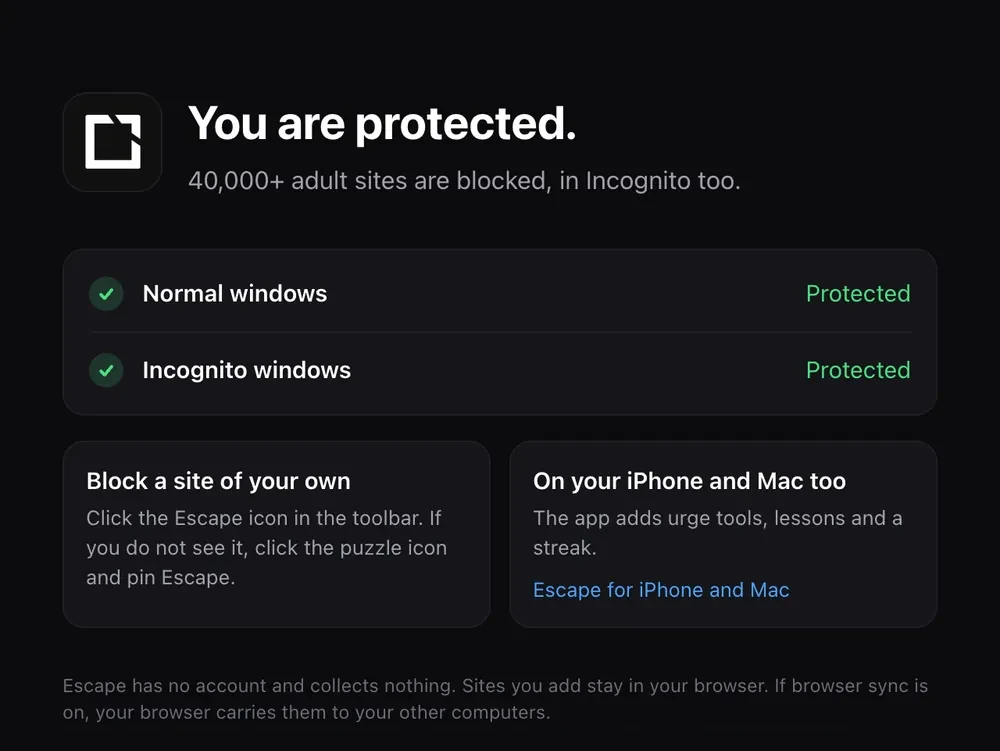
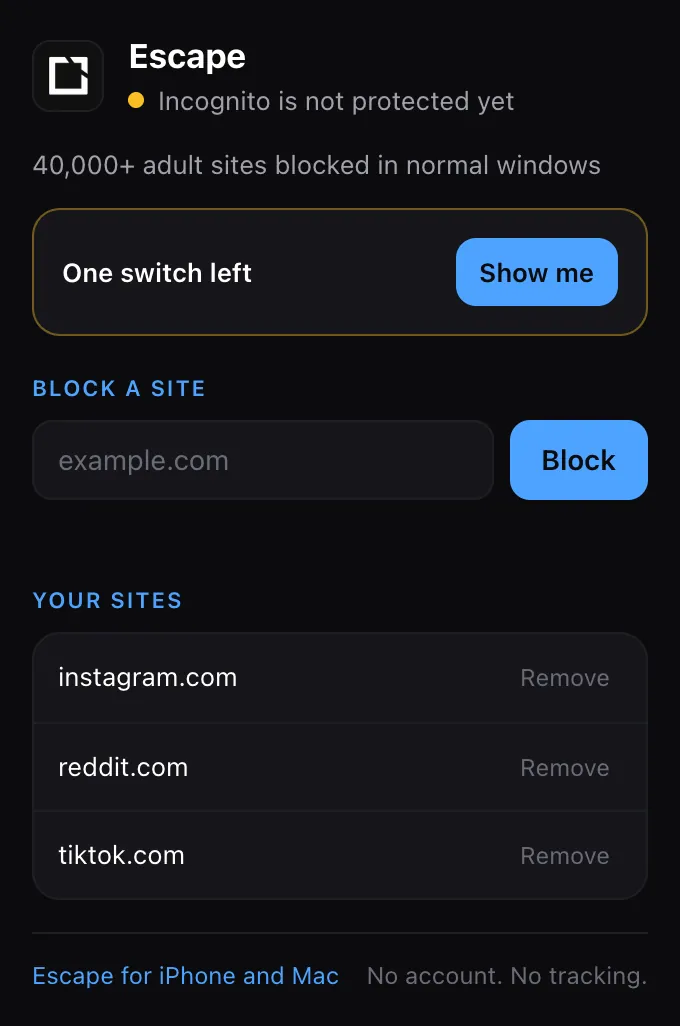
Chrome keeps every extension out of Incognito until you allow it. Click the Escape icon on each computer. If it says One switch left, click Show me and turn on Allow in Incognito. When it says Incognito windows are protected, that computer is done.
5. Pin it and test it
Pin the Escape icon from the puzzle piece menu. Then open an Incognito window, with Ctrl+Shift+N on Windows or a Chromebook or Cmd+Shift+N on a Mac, and try a site you know is on the list. You should see Chrome's plain page saying the site is blocked.
Block a site once, blocked everywhere
Click the Escape icon, type or paste an address in the Block a site box, and click Block. With sync on, that site shows up under Your sites on your other computers too. You can add up to 200. So when you notice a new site pulling you in, you block it once and every computer you use is covered.
More than one Chrome profile?
Each Chrome profile keeps its own extensions. If you use a work profile and a personal profile, add Escape to each one you want covered. Each takes about a minute.
A quick check for each computer
Once a computer is set up, click the Escape icon. You want to see Protection is on, and a line saying Incognito windows are protected. If both are there, that computer is done. It is worth a ten-second look whenever you get a new computer or start using an old one again, so every screen you use stays covered.
Other browsers on the same computers
Escape for Chrome can also be added to Microsoft Edge and Brave from the Chrome Web Store. Add it in each browser you use, and turn on its private-window switch there too. The Edge guide and the Brave guide cover each one, and the Windows guide covers a PC from start to finish.
Private across every computer
Escape for Chrome asks for two permissions only, and neither lets it read your pages. It cannot see what you visit or your history, and it sends nothing to us. Sync is your browser's, under your own account. What those two permissions mean.
And your phone
Your computers are covered. Your phone is the last screen. On iPhone, the free Escape app blocks the same 40,000+ adult sites in Safari, with no account. The full computer setup is in how to block porn in Chrome on a computer.
Common questions
How do I block porn on all my computers?
Add Escape for Chrome to Chrome on one computer and make sure Chrome sync is on. Chrome can then add Escape to your other computers signed in to the same Chrome account, and your own blocked sites follow you. Turn on Allow in Incognito on each computer.
Does Chrome sync add my extensions to my other computers?
When you are signed in to Chrome with sync on, Chrome can add the extensions you use to your other computers signed in to the same account. Look for the Escape icon in the toolbar on each one, or add it from the Chrome Web Store in a minute.
Do my own blocked sites follow me to other computers?
Yes, when browser sync is on. Your browser carries the sites you add to your other computers under your own browser account. Escape never sees the list.
Do I turn on Allow in Incognito on each computer?
Check it on each one. Click the Escape icon. If it says One switch left, click Show me and turn on Allow in Incognito. When it says Incognito windows are protected, that computer is set.
Do I need an Escape account to sync?
No. Escape has no account. Sync is your browser's own feature, under your own browser account, so there is nothing to create with us.

Escape - Adult Content Blocker
Add Escape for Chrome once and let Chrome sync carry it to your other computers. Free.
Free extension forChromeMore on this topic in Chrome and computer guides, or go deeper with the Your phone is the dealer course.